
The program for flashing and updating firmware on any ESP32-based board. Connect the board to your PC, pick the firmware, press one button: no installation, no development environment.
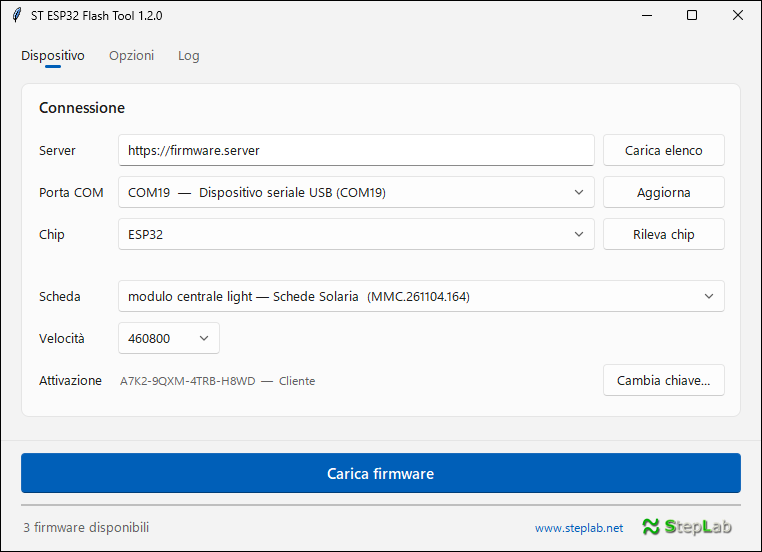
Built for technicians and installers
The Flash Tool downloads the right firmware for your board from the server and writes it to the ESP32 over USB.
With Rileva chip (detect chip) the program reads the model of the connected ESP32 and shows only the compatible boards and firmware.
For each board you see the product and the available firmware version. Your choices are remembered the next time you start it.
Every downloaded file is checked with SHA-256 before it is written: an incomplete or corrupted download never reaches the board.
With a full installation you can add files and folders from your PC to the board's filesystem, such as configuration files or web pages.
Downloaded firmware stays in the cache: on site, without a connection, you can still flash the versions you used before.
At startup the program checks for a newer version, installs it with one click and restarts by itself.
Choose the mode based on what you want to keep on the board.
To bring a board that is already installed up to the latest software.
For a new board, or one to restore to factory state.
You need a PC, a USB data cable and the activation key you received from StepLab.
Download the .exe file and open it: there is nothing to install. You can copy it to a USB stick and use it on any Windows PC.
The first time you start it, enter your activation key (XXXX-XXXX-XXXX-XXXX). The program loads the firmware list.
Connect the ESP32 over USB, pick the Porta COM (COM port) and press Rileva chip. Then choose your board from the list.
Choose the mode and press Carica firmware (flash firmware). When writing is done, the board restarts with the new software.
No development environment, no programming skills: just a PC and a USB cable.
Windows 10 or 11. The program is a single file: it even runs from a USB stick.
To connect the ESP32 board to the PC. If the port doesn't show up, install the CP210x or CH340 USB-serial driver.
Provided by StepLab: it gives access to your firmware and can be updated or revoked at any time.
SmartScreen may flag less common programs downloaded from the Internet. Click More info, then Run anyway.
Make sure the USB cable carries data, try another USB port on the PC and install the board's USB-serial driver (CP210x or CH340). Then press Aggiorna (refresh) next to the port list.
StepLab provides the key. If you didn't receive it or have lost it, contact us. If you work for several clients, add each key with Aggiungi… (add) next to Licenza and pick the client from the list.
No: a firmware update keeps the device's settings and files. Only a full installation erases the whole flash memory.
Close other programs using the same COM port (serial monitors, IDEs), then try again with a lower Velocità (speed). On some boards you need to hold the BOOT button while flashing starts.
No: at startup the Flash Tool checks for a newer version and offers Scarica (download) or Salta (skip). The new executable replaces the old one and the program restarts.
The Flash Tool is one of the software projects StepLab develops for its clients. Discover our other services and projects at www.steplab.net.
Write to us to activate the Flash Tool, or to have the firmware for your ESP32 board developed.